Who is this guide for?
For a building manager who wants to determine that an apartment is occupied (inhabited) or vacant (empty), and wants to understand the impact on the numbers.
Steps
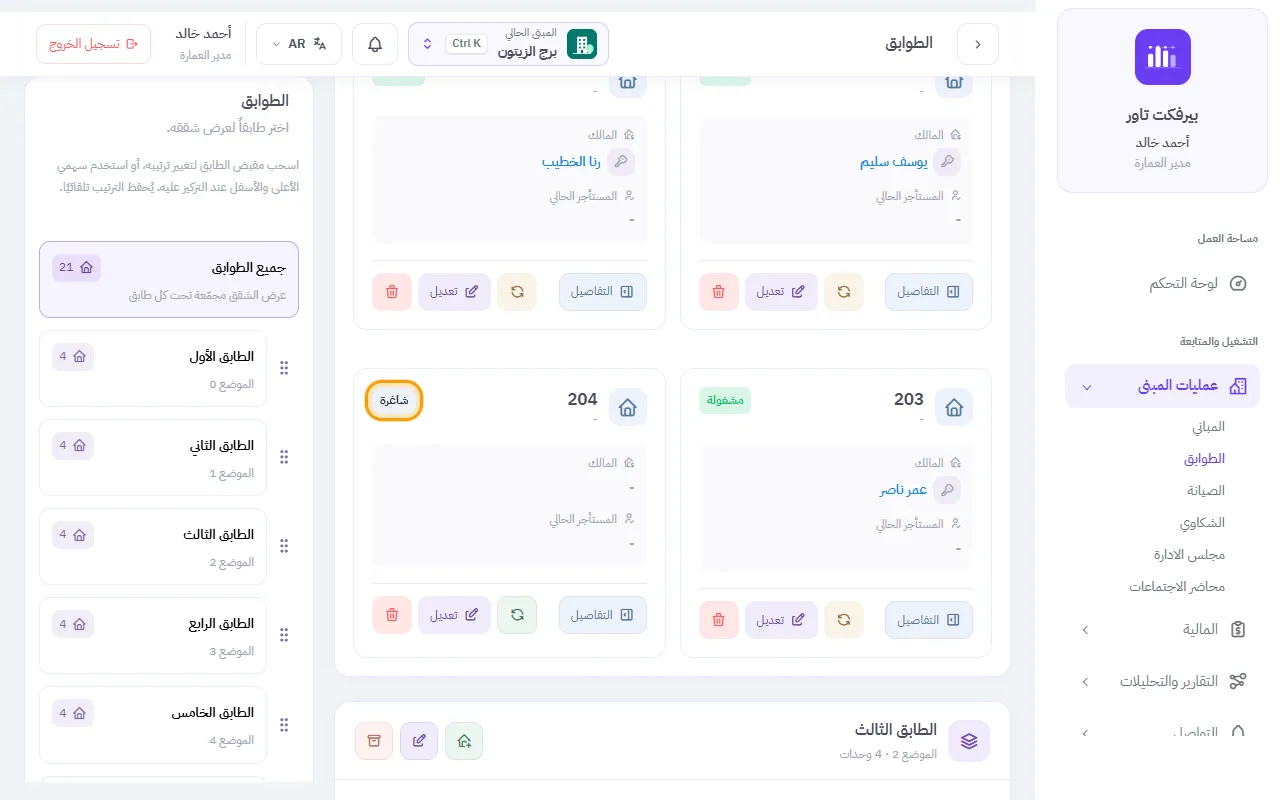
- Open Building Operations ← Floors.
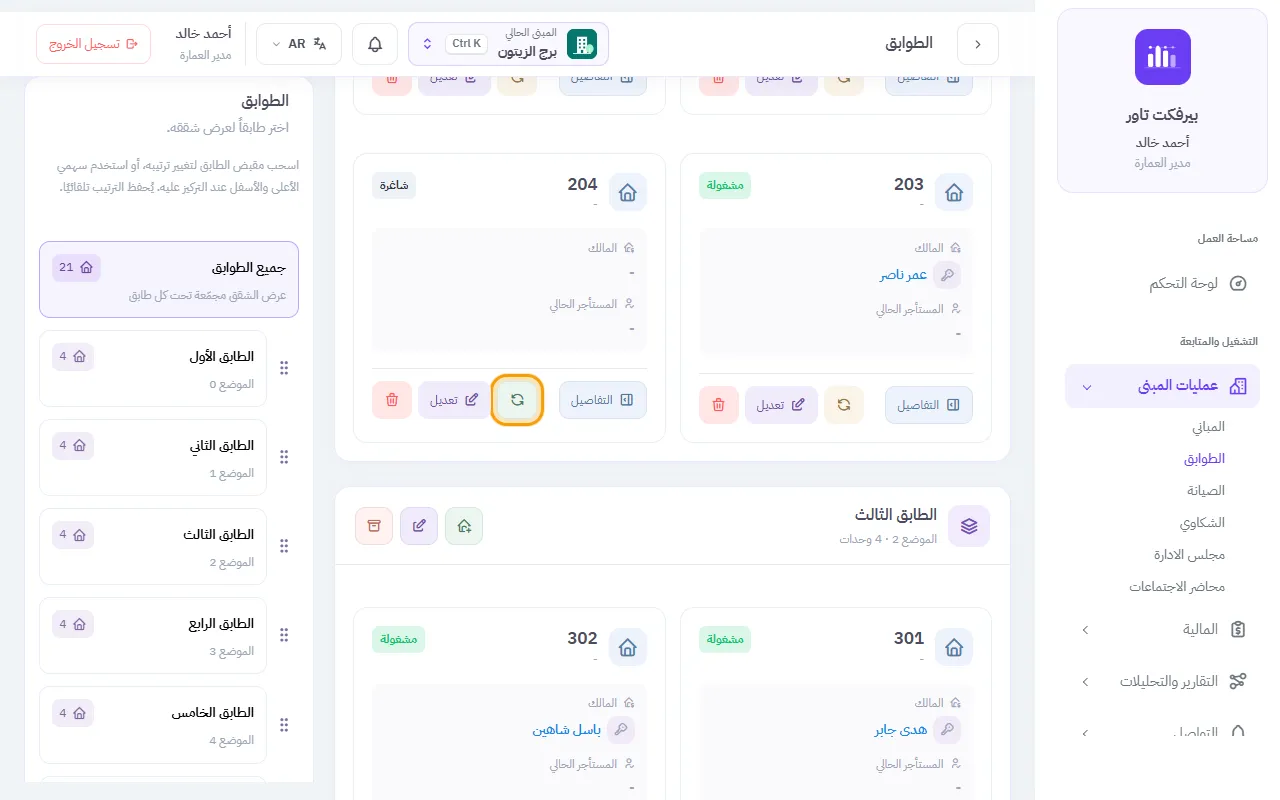
- The apartment card shows a status badge of Occupied or Vacant. Press the toggle button (circular arrow icon) below the card to change the status immediately.
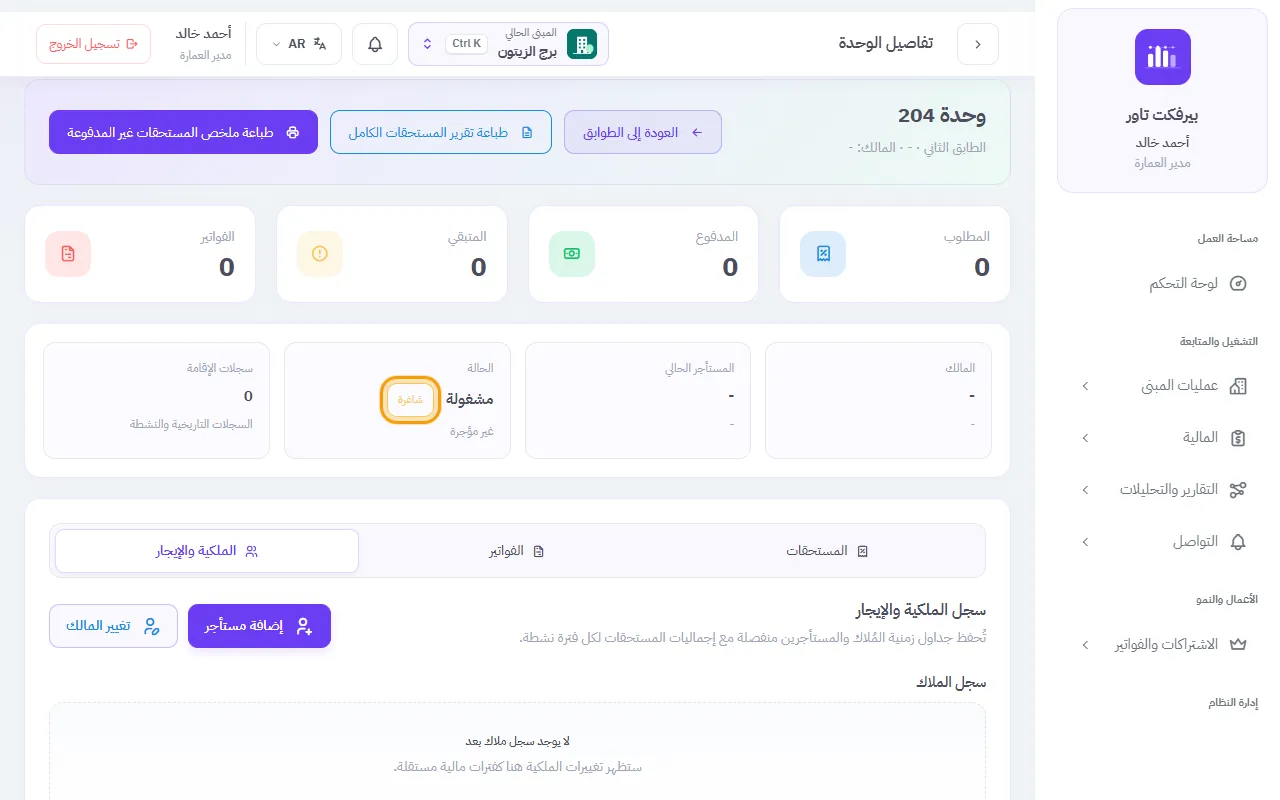
- Or click Details on the apartment, and in the Status box at the top of the page click the small button next to it (it says Vacant or Occupied depending on the new status).
- You can also select it from the Occupancy field when adding or modifying an apartment.
Result
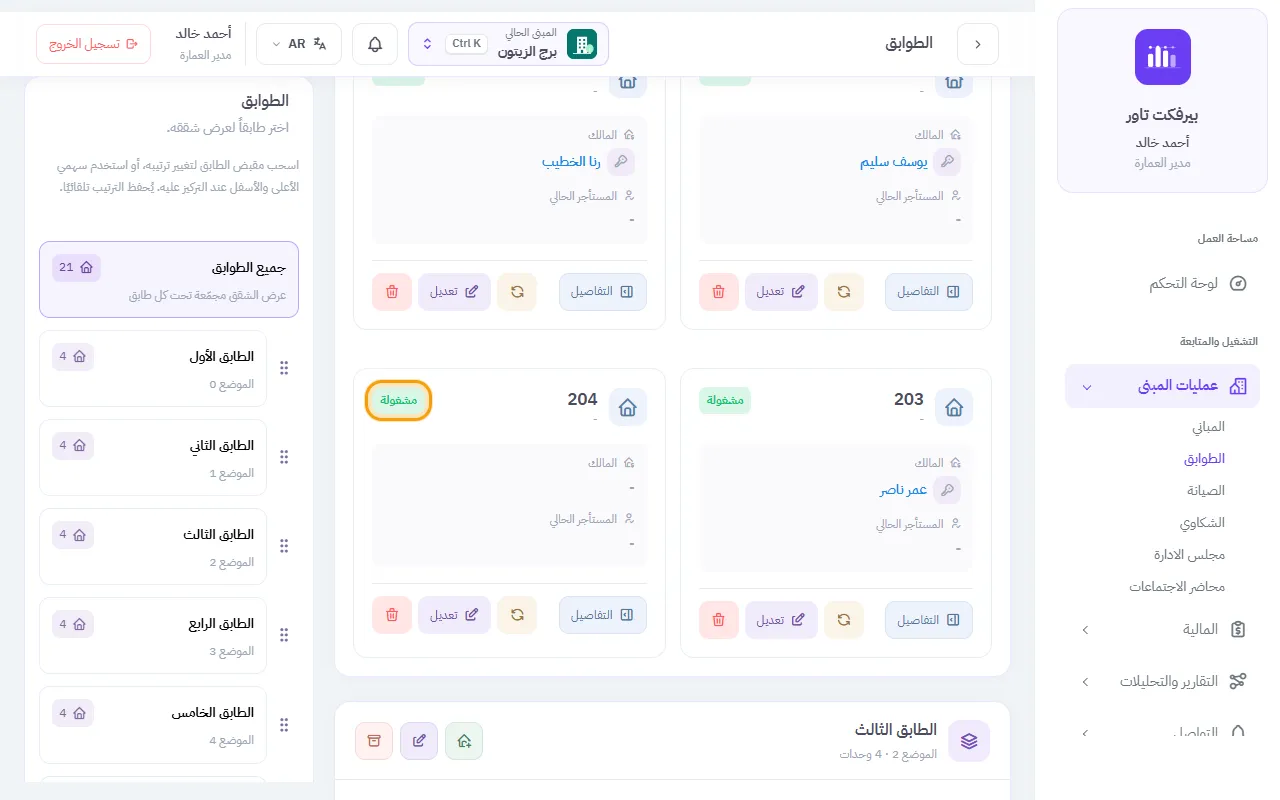
The badge changes immediately without reloading the page, and the occupied and vacant cards appear at the top of the floors, dashboard, and building reports page.
The difference between “occupied” and “rented”
- Rented It appears automatically when the apartment has an active lease, and disappears when the contract is terminated.
- Occupied / Vacant A tag defined by you. Adding a tenant does not change it automatically, so if you rent a vacant apartment, change it to Occupied so that it appears correctly in the statistics.
- When you link an owner to the apartment, it is automatically marked occupied; If it is already empty, return it to Vacant.
Important notes
- Status does not affect dues or invoices; It is for statistics and reports only.
- If nothing changes when you click, you may not have the authority to modify apartments — contact the building manager.
The four flat statuses
Every flat has one clear status on its card:
- Rented: automatic from the lease, monthly dues apply, not changed by hand. End the lease to free it (it becomes Vacant).
- Owner lives here: monthly dues apply (the flat needs an owner).
- Vacant: automatic monthly dues skip it.
- Under maintenance: not habitable for now; automatic monthly dues skip it.
To change it, use "Change status" on the flat card or its details page; each option says what it does.
-
1Step 1
افتح عمليات المبنى ← الطوابق. في بطاقة كل شقة تظهر شارة الحالة مشغولة أو شاغرة.
-
2Step 2
اضغط زر التبديل (أيقونة الأسهم الدائرية) أسفل البطاقة لتغيير الحالة فوراً.
-
3Step 3
تتغير الشارة مباشرة دون إعادة تحميل الصفحة، وتتحدث بطاقتا مشغولة وشاغرة أعلى الصفحة.
-
4Step 4
أو من صفحة تفاصيل الشقة: في خانة الحالة أعلى الصفحة اضغط الزر الصغير بجانبها. ويمكنك أيضاً تحديدها من حقل الإشغال عند إضافة شقة أو تعديلها.